
You already wrote the article. Getting people to sit with it is the hard part. A narrated clip is easier to finish on a phone, whether you are teaching a lesson, sending a work update, or explaining a science topic. Turning that draft into video used to mean scripts, slides, and a lot of editing time. Now you can paste the text, fix the outline, and export a file.
In this article, you’ll learn:
- Why turning an article into a video helps teams, classrooms, and product notes
- What Mango AI Article to Video offers for turning drafts into narrated clips
- How to turn an article into a video in three steps
- How to prepare your draft and polish the outline after you know the flow
Why Turn an Article into a Video
A finished article already holds the argument. Turning it into video lets people hear that argument while the chapters appear on screen, which helps remote teams catch up without another meeting, helps teachers replay a lesson, and helps product notes land when nobody wants to open a long doc.
You also keep the structure you already wrote. Headings become scenes, paragraphs become narration, and the same draft can go out as a clip for Slack, class, or social. The point of article to video is not fancy editing. It is getting the writing in front of people who will watch or listen when they will not open another long page.
What Makes Mango AI Article to Video Useful
Mango AI Article to Video is built for one job: turning a written draft into a narrated explainer clip. Teachers, marketers, and remote teams can keep the writing they already have, then let the generator handle scenes, voice, and on-screen presenters.
Nøglefunktioner
- Turns a pasted article into chapter scenes and narration scripts you can still edit before generate.
- Offers many video templates, from notebook-style explainers to brighter illustrated boards.
- Provides a rich AI Avatar library across styles such as Cartoon Sprite, Educational, Ancient Cartoon, Casual Cartoon, and Global Cartoon, including looks like a doctor, a pilot, or a business outfit, with a No AI Avatar option when you want slides only.
- Supports broad language and voice choices, with filters for language, gender, age, and tier, plus speakers such as Emma, Ava, Andrew, Brian, and Jenny.
- Adds optional BG Music from mood packs like Beats, Happy, Sad, Serious, Tech, and Festival, or lets you upload your own track.
- Includes subtitle, landscape, and progress bar options so the finished clip works for silent viewing, wide players, and chapter navigation.
When generation finishes, you can preview and download on the page. Older projects also stay in My Creations if you need them again. If you only have a short prompt, Tekst til video is a better fit. If you want one face talking to camera, try Talende avatar. For multi-section explainers from a real article, stay on Article to Video.
How to Turn an Article into a Video in Three Steps
Open the Article to Video generator, paste your draft, generate the outline, then preview and download the finished clip.
- Paste Your Article
Open Article to Video and drop at least 100 words into the Article box. Choose an Article Type that fits what you wrote, like Science, Work Summary, Lesson Plan, or Project Plan. Stay under the character limit so the outline does not sprawl.
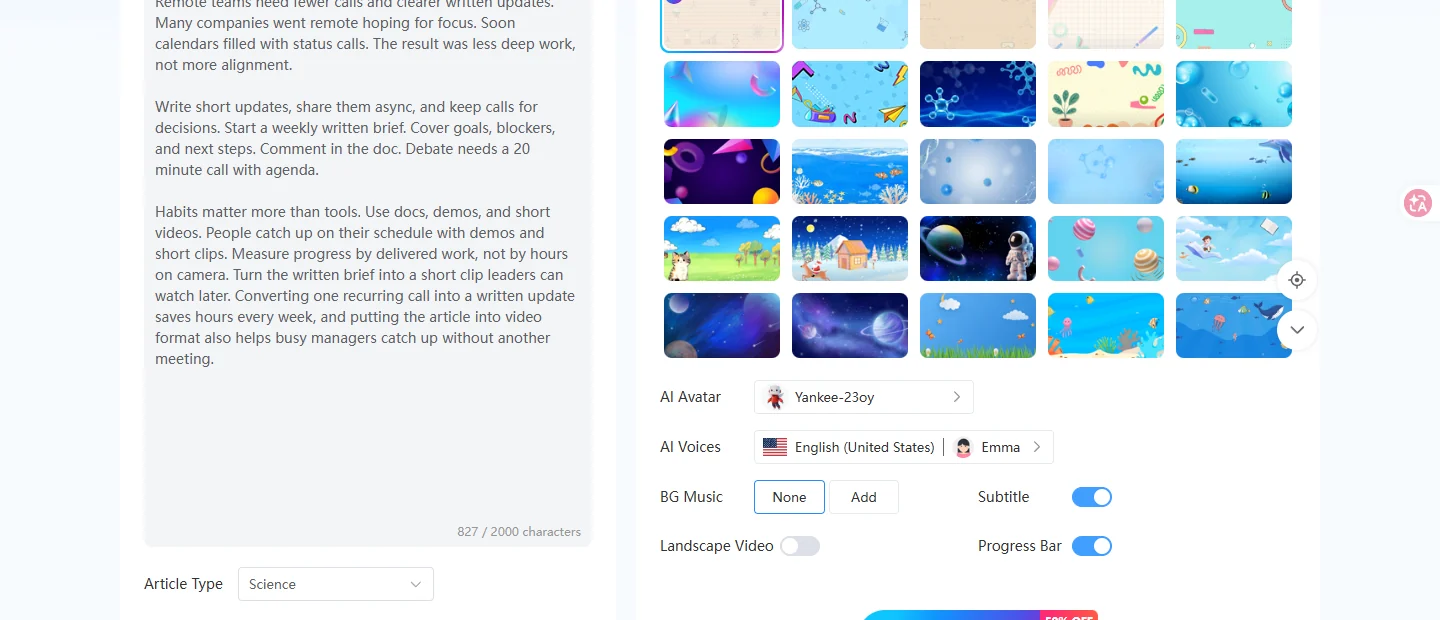
- Customize Then Generate
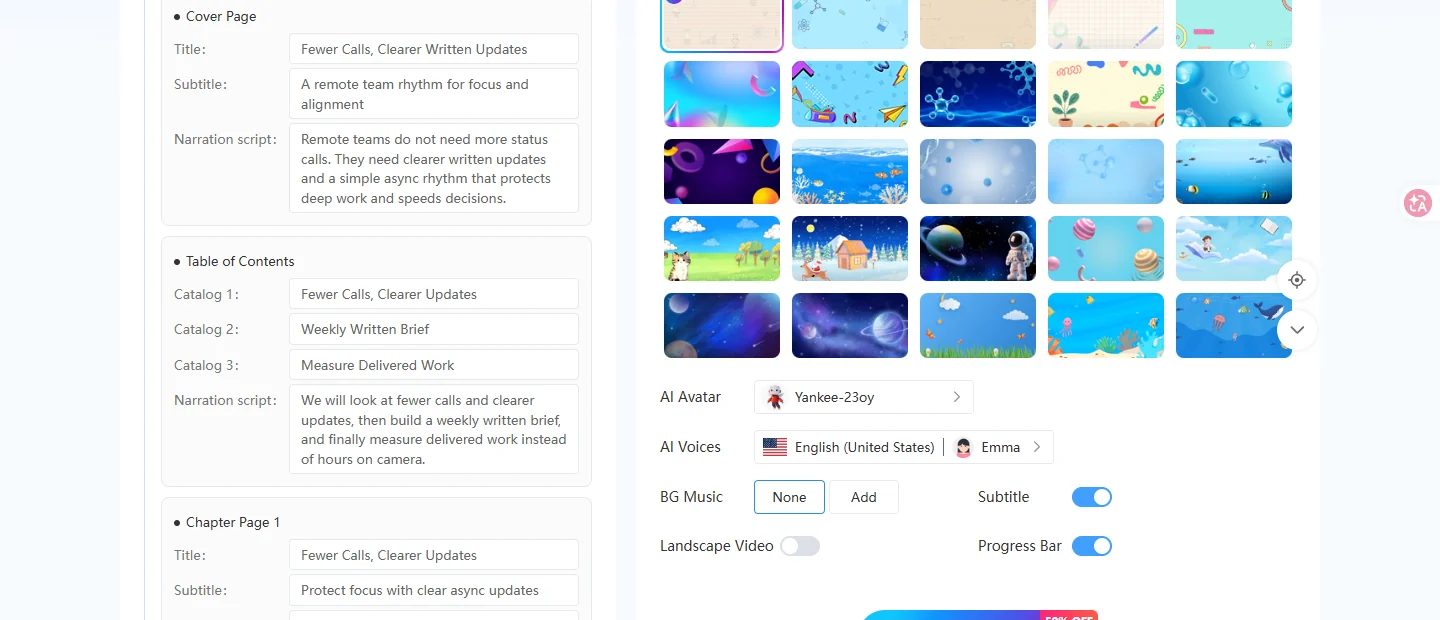
Hit Generate Outline with AI and read through the cover, chapters, and narration. On the right, pick a Video Template, an AI Avatar, and a voice. Turn Subtitle or Progress Bar on if you want them, then click Generate AI Video and wait until the finished preview is ready on the page.
- Forhåndsvisning og download
Play the finished preview, check the voice and captions, and download it when it sounds right. You can also find the same project later under My Creations, My Videos, Article to Video if you want to reopen it without pasting the article again.
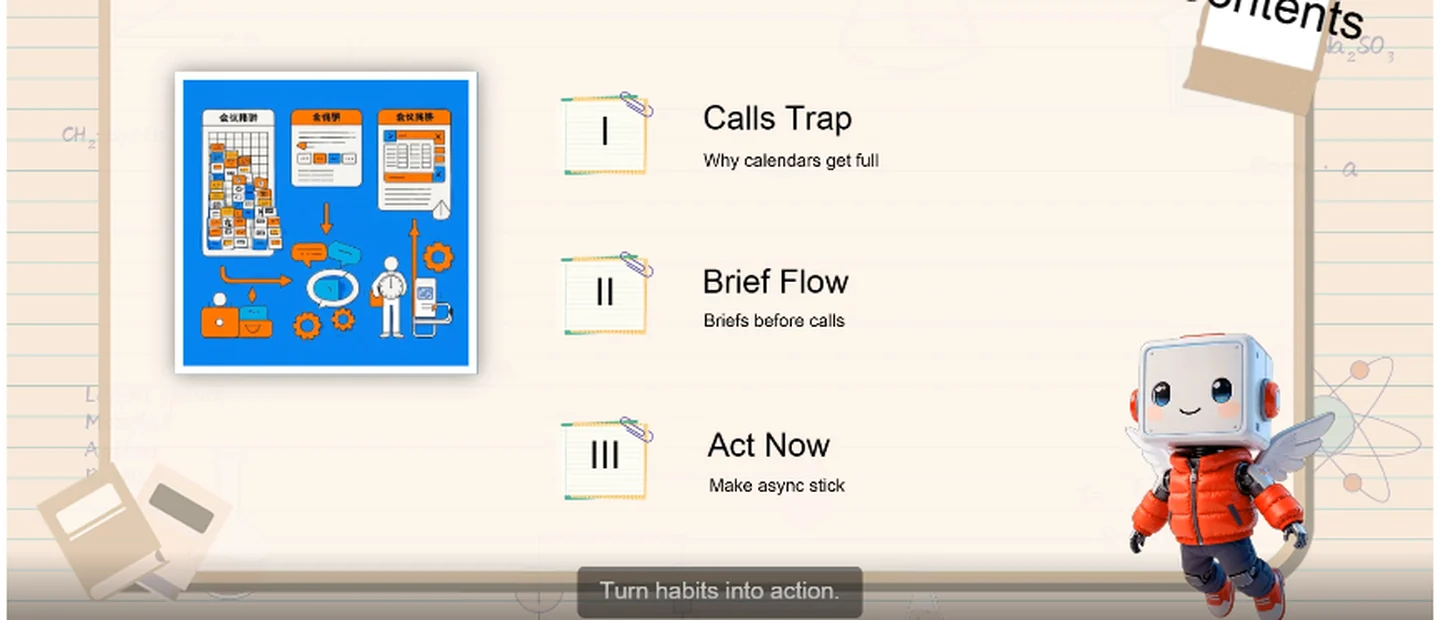
Here is what a finished article to video can look like. This sample came from a remote-work draft: chapters, narration, and an avatar on a notebook-style template.
Prepare Your Draft Before You Convert Article to Video
Once you know the three steps, a few small choices make the clip clearer:
- Stick to one topic, keep headings obvious, and cut rambling paragraphs before you paste. The outline can only be as clear as the draft you feed it.
- Match Article Type to the real use, so a lesson plan does not sound like a project brief.
- After Generate Outline with AI, read the narration once out loud. If a line feels awkward, shorten it in the outline before you hit Generate AI Video.
- Leave Subtitle on for silent autoplay. Use landscape for YouTube or embeds, and leave it off for taller social cuts.
- Reopen older projects anytime under My Creations > My Videos > Article to Video, without pasting the article again.
Wrap-Up
If the draft is solid, Article to Video can turn it into a shareable clip without a full video shoot. Paste, tidy the outline, generate once, and download when the preview sounds right. That is usually enough for the next lesson, standup, or launch note.
Want more video-maker options after this? See Top 12 gratis AI-videoprogrammer til at forvandle dine ideer til videoer og Sådan laver du AI-videoannoncer, der fanger seernes opmærksomhed i løbet af de første 3 sekunder.
Turn an Article into a Video with Mango AI
Common Questions About Article to Video
It means taking a written draft and turning it into a narrated clip with scenes, an avatar, and optional captions. You paste the text, fix the outline if needed, generate, then download.
Aim for at least 100 words so the outline has something to work with, and stay under the character limit on the page. Short sections usually play better than one long block of text.
Yes. After Generate Outline with AI, you can change titles, subtitles, and narration on each page, then tweak the template, avatar, voice, music, and subtitle settings before you hit Generate AI Video.
When the preview is ready, download it from the finished player. You can also reopen the project later under My Creations > My Videos > Article to Video.