
Creating images from text or photos has become easier with AI technology. If you want to generate pictures without opening heavy design software, AI image creation tools are a practical option. These tools let you type a short description or upload a photo, pick a size, and download a finished still in minutes. In this article, we list nine tools you can try today. Each one offers different models, output options, and workflows, so you can find an image creator AI that fits your project.
1. Text to Image
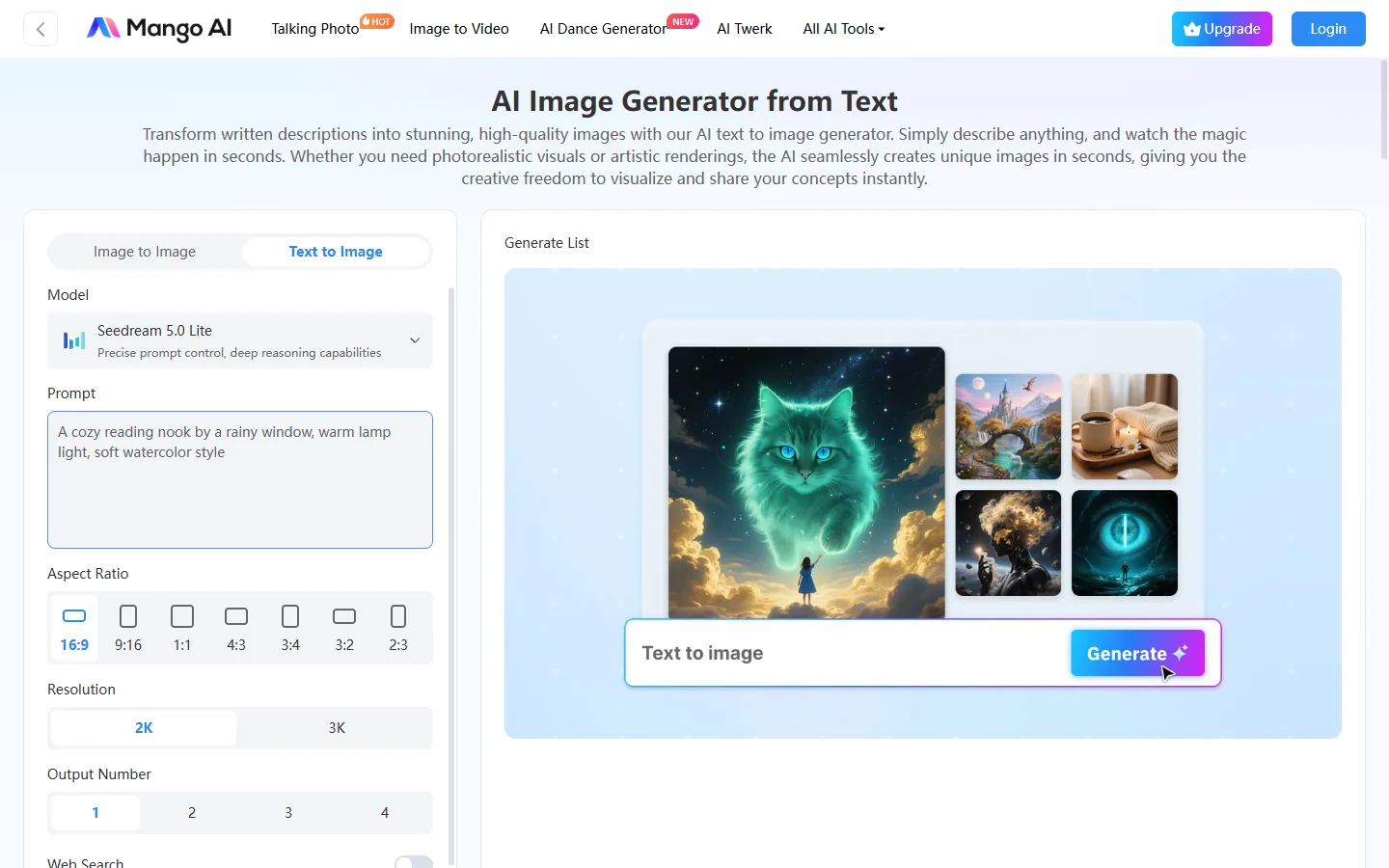
Mango Text to Image is an AI image creation tool for turning a written prompt into a still. Open the text to image page when you want to start from words, pick a model, set the aspect ratio and resolution, then generate one to four frames for the Generate List.
Key Features:
- Prompt-based text to image workflow in the browser
- Model dropdown plus ratios from 16:9 to 2:3
- 2K or 3K resolution and 1–4 outputs per run
- Generate List preview before you download
How to Use:
- Open Text to Image and paste a clear scene prompt.
- Pick a model, aspect ratio, and resolution, then click Generate.
- Review the Generate List and download the frame you like.
Pros:
- Fast path from a short prompt to a finished still
- Clear credit note under Generate
- Works well for posters, social posts, and product drafts
Cons:
- Free plan adds a watermark
- Paid credits needed for heavier commercial batches
Best For: Anyone who wants text to image AI free access in the browser before upgrading.
2. Image to Image
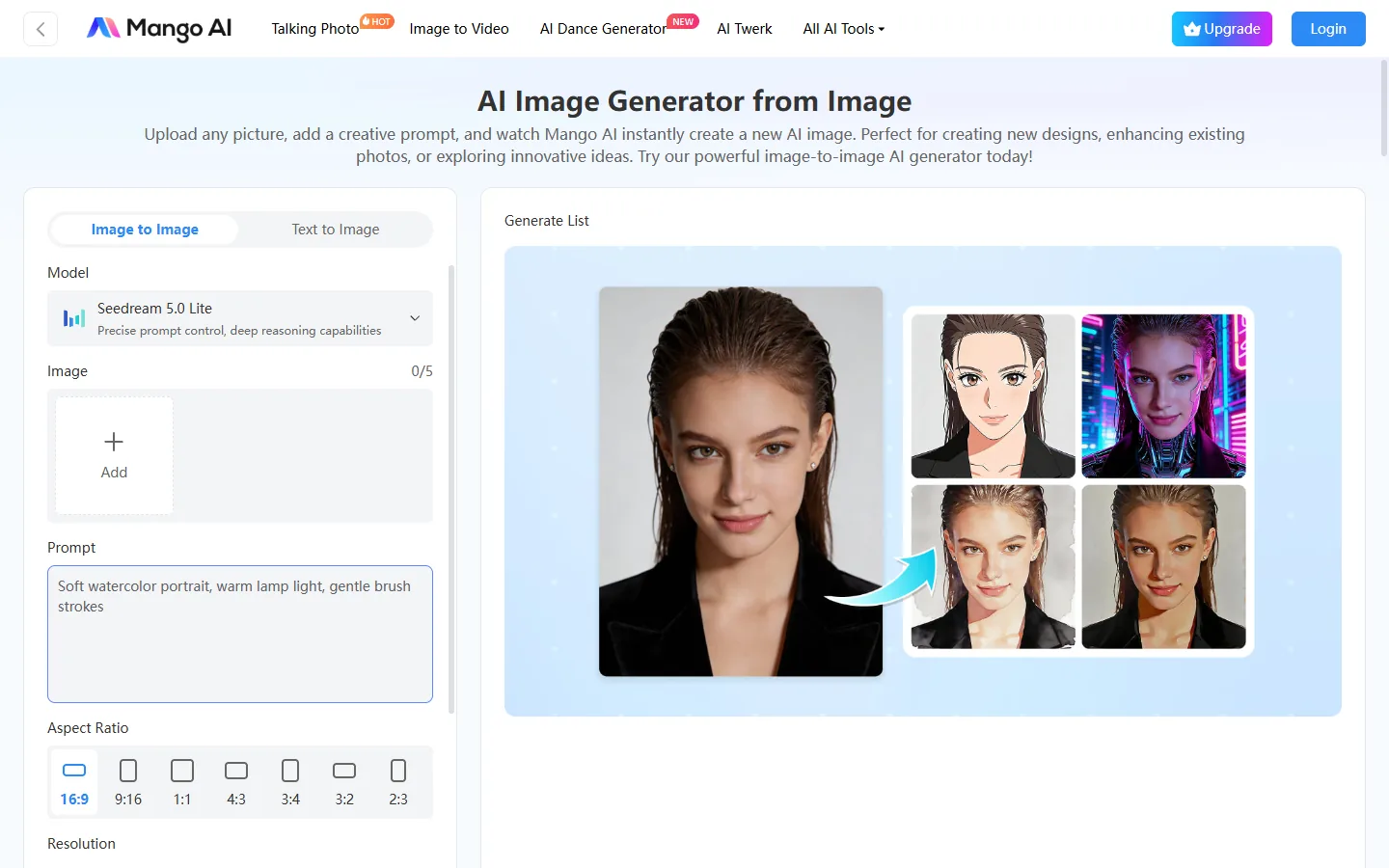
Mango Image to Image is the photo-first side of the same image creator ai. Open the image to image page when you already have a product shot, portrait, or layout and want a new style or scene around it.
Key Features:
- Upload up to five JPG, JPEG, PNG, or WebP references
- Style prompt on top of the source photo
- Same model, ratio, and resolution controls as text to image
- Credit cost shown under Generate before you run
How to Use:
- Open Image to Image and upload one to five reference photos.
- Add a short style prompt, set model and ratio, then Generate.
- Compare results in the Generate List and download the best still.
Pros:
- Keeps the source subject while changing style or scene
- Useful when a blank prompt is harder than a reference photo
- Fits product restyles and portrait look tests
Cons:
- Needs a clean source photo for best results
- Free exports may include a watermark
Best For: Creators who start from a photo instead of a blank prompt.
3. Midjourney
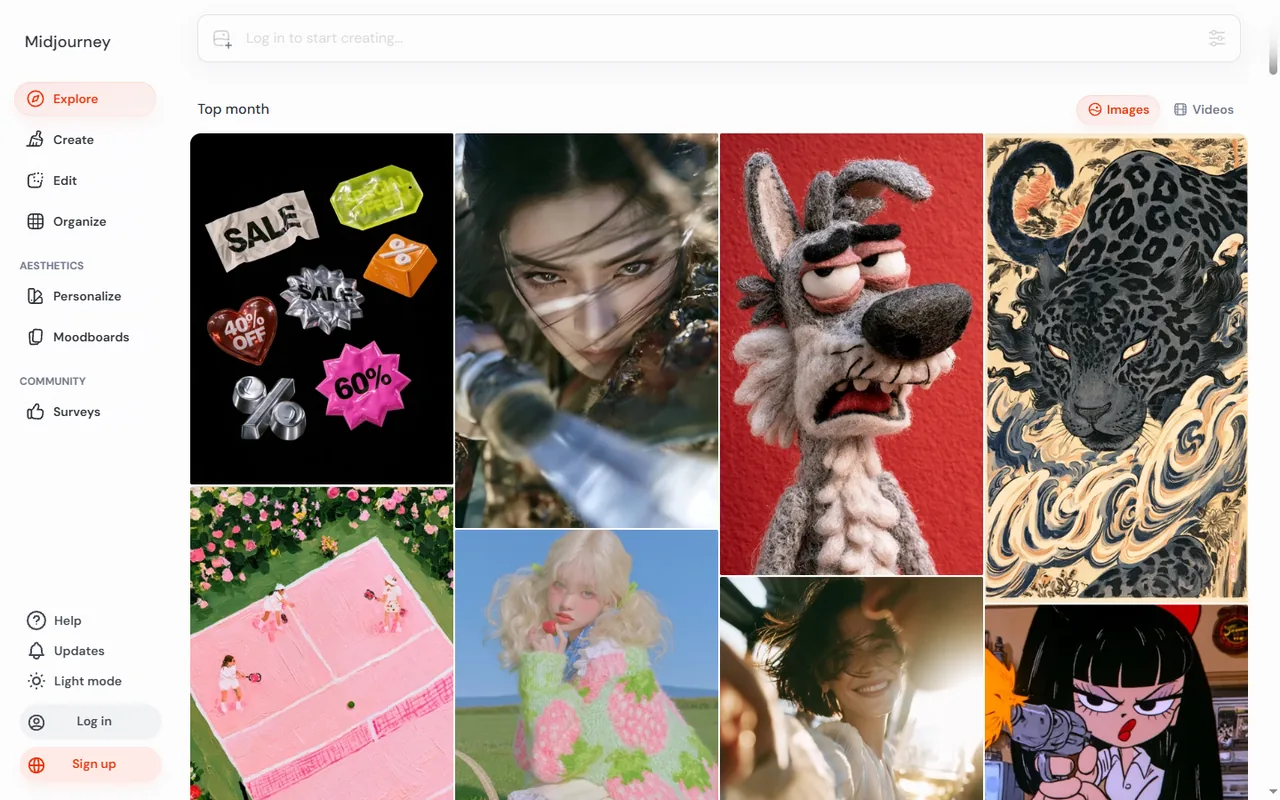
Midjourney is widely used for stylized stills and mood-heavy scenes. You write a text prompt in the web app or Discord, generate variations, then blend or upscale the frame you like.
Key Features:
- Text prompts with variation and upscale flows
- Image references for style or layout
- Fast GPU drafts plus Relax mode on higher plans
- Strong atmosphere for concept and campaign art
How to Use:
- Open the Midjourney web app or Discord and paste a text prompt.
- Generate variations, then upscale or remix the frame you like.
- Download the still when the mood and detail look right.
Pros:
- Excellent mood and stylized looks
- Mature variation and remix workflow
- Community explore feed for inspiration
Cons:
- Paid plans for steady use
- Less of a plain product-shot tool than a style engine
Best For: Concept art, campaign visuals, and creators who care more about atmosphere than a plain product crop.
4. ChatGPT Images
ChatGPT Images generates and edits stills inside the same chat window where you write copy. Describe the scene, attach a photo when you want a variation, and ask for small changes in follow-up messages.
Key Features:
- Image generation inside the ChatGPT chat
- Follow-up edits in plain language
- Optional photo attachment for variations
- Free tier with limited runs; paid plans for steadier output
How to Use:
- Open a ChatGPT chat and describe the image you want.
- Attach a photo if you need a variation, then ask for edits in follow-ups.
- Save or download the still when the draft looks ready.
Pros:
- Copy and image drafts stay in one thread
- Easy iterative tweaks without a separate design app
- Familiar interface for teams already on ChatGPT
Cons:
- Limits feel tight on the free plan
- Less control than dedicated image studios
Best For: Teams that draft captions in ChatGPT and need quick social or blog stills.
5. Leonardo AI
Leonardo AI focuses on model choice and repeatable characters. You can run text to image jobs, image-to-image passes, upscales, and canvas edits in one workspace.
Key Features:
- Multiple models for text to image and image-to-image
- Character consistency and fine-tune options
- Upscale and canvas edit tools
- Batch-friendly generation limits on paid seats
How to Use:
- Open Leonardo, pick a model, and enter a prompt or upload a reference.
- Generate stills, then upscale or edit on canvas if needed.
- Export the frames that keep character or product consistency.
Pros:
- Strong when the same face or product must repeat
- All-in-one workspace for draft and refine
- Good for game art and brand character sheets
Cons:
- Learning curve across models and settings
- Heavy use needs paid seats
Best For: Game artists, brand teams, and anyone building character sheets or concept boards.
6. Ideogram
Ideogram is a strong pick when the image must include readable text. Posters, logo mockups, and labeled product shots often look cleaner here than in general-purpose models.
Key Features:
- Text-aware image generation for headlines inside the art
- Prompt, remix, and edit flows
- Limited free queue before paid plans
- Useful for flyers, thumbnails, and logo drafts
How to Use:
- Go to Ideogram and write a prompt that includes the exact headline text.
- Generate stills, then remix or edit if the type is close but not exact.
- Download the version where the wording stays readable.
Pros:
- Legible type inside the still more often than peers
- Remix helps when the first pass is close
- Clear fit for ad and event creative
Cons:
- Throughput depends on credits and queue
- Check current limits before a full campaign
Best For: Ad thumbnails, event flyers, and briefs where the headline must stay legible inside the artwork.
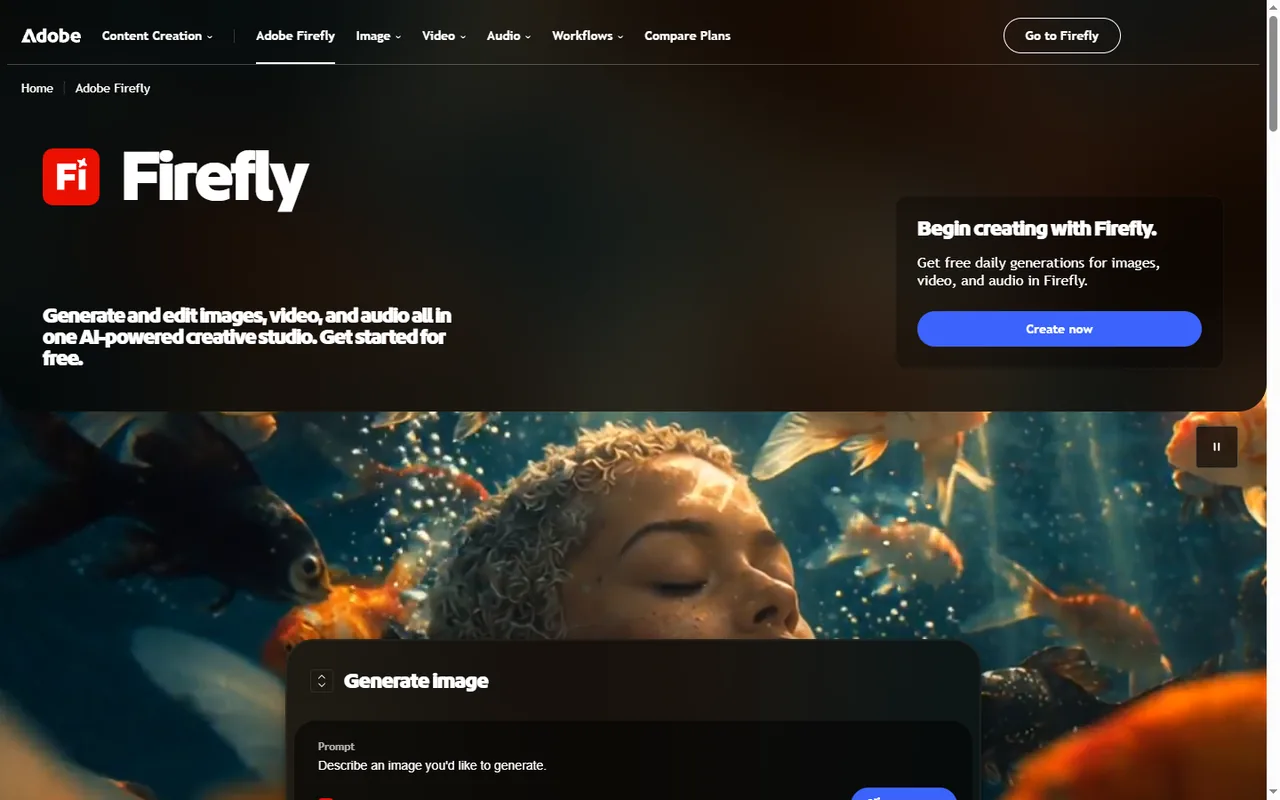
7. Adobe Firefly
Adobe Firefly connects image generation to the Creative Cloud apps many teams already use. Create stills from text, run generative fill in Photoshop, or start from a photo in Express.
Key Features:
- Text-to-image plus generative fill in Photoshop
- Express and Firefly web entry points
- Partner models and larger credit pools on higher plans
- Commercial-safe training story for Firefly models
How to Use:
- Open Firefly on the web or start from Photoshop / Express.
- Enter a prompt or use generative fill on a photo, then generate.
- Save the still into your Creative Cloud workflow.
Pros:
- Fits design departments already on Creative Cloud
- Legal-friendly messaging for in-house review
- Small free credit bucket to start
Cons:
- Heavier use needs paid credit pools
- Best value if you already pay for Adobe
Best For: Design teams that want generation inside Photoshop rather than a separate login.
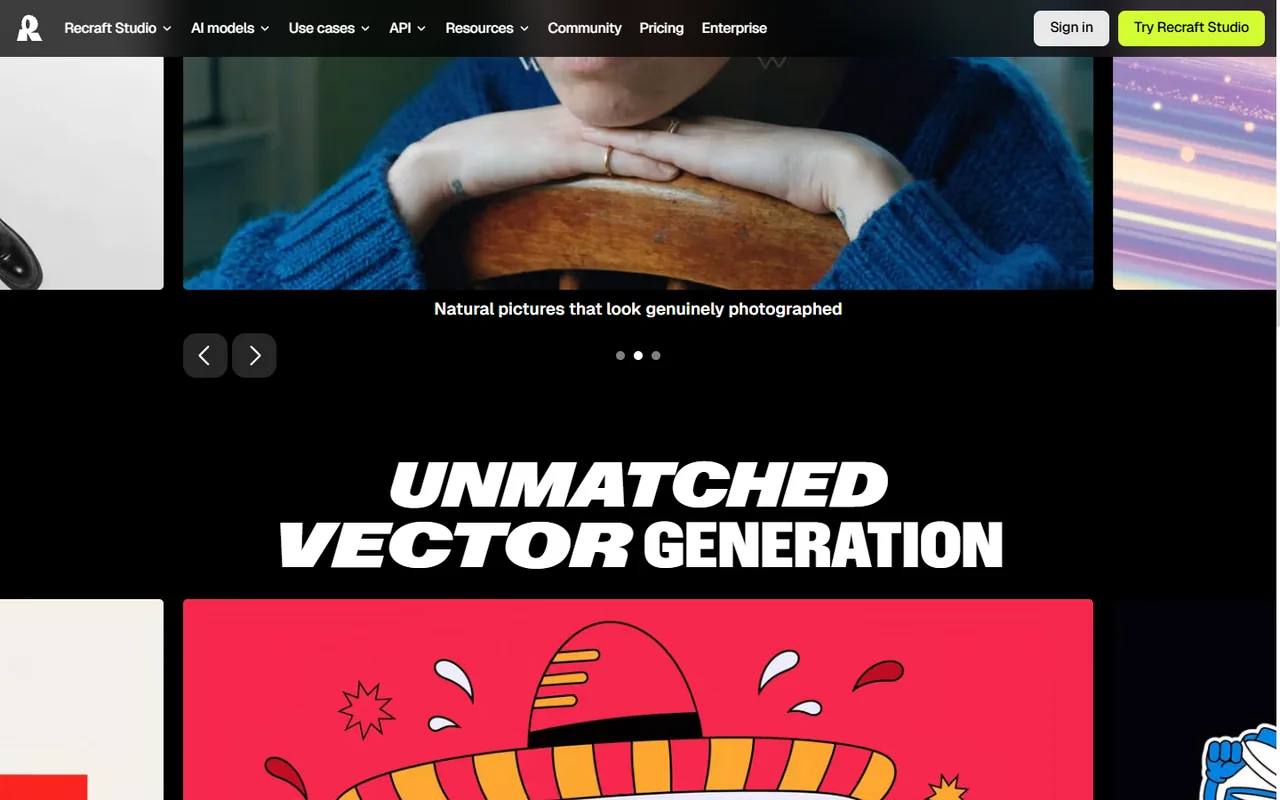
8. Recraft
Recraft targets designers who need editable files, not only JPG exports. Generate from text or a reference photo, then export vector-friendly assets on paid plans.
Key Features:
- Text and reference-based generation
- Design-app style controls for layout and style
- Vector-friendly exports on paid plans
- Batch output for kits and icon sets
How to Use:
- Open Recraft and start from a text prompt or reference image.
- Adjust style and layout controls, then generate the set.
- Export JPG or vector-friendly files for design handoff.
Pros:
- Closer to a design workspace than a chat box
- Useful handoff to Figma or print
- Free daily credits to try the flow
Cons:
- Advanced exports sit behind paid plans
- Overkill if you only need a single JPG
Best For: Icon sets, brand kits, and anyone handing artwork to a printer or a Figma library.
9. Gemini
Gemini turns a text prompt into a still—or accepts an uploaded photo when you want a variation—inside Google’s chat interface. Imagen-family models power the results.
Key Features:
- Chat prompt to still generation
- Photo upload for variations and edits
- Imagen-family models under the hood
- Vertex AI path for higher company volume
How to Use:
- Open Gemini and describe the image, or upload a photo to vary.
- Ask for edits in follow-up messages until the still looks right.
- Save the result into Docs, Slides, or your local files.
Pros:
- Handy inside Docs, Slides, and Search workflows
- Familiar for Google Workspace teams
- Quick drafts without a separate design seat
Cons:
- Consumer limits depend on free vs paid Google AI plans
- Less specialized than dedicated image studios
Best For: Teams already on Google Workspace that need quick image drafts.
Compare 9 AI Image Creation Tools at a Glance
| Tool | Input | Output | Pricing | Best For |
|---|---|---|---|---|
Tool Mango Text to Image | Input Text prompt | Output Stills (2K/3K) | Pricing Free + paid | Best For Fast prompt-to-image drafts |
Tool Mango Image to Image | Input Photo + prompt | Output Restyled stills | Pricing Free + paid | Best For Photo-first restyles |
Tool Midjourney | Input Prompt / reference | Output Stylized stills | Pricing Paid plans | Best For Mood and concept art |
Tool ChatGPT Images | Input Chat prompt / photo | Output Draft stills | Pricing Free + paid | Best For Copy + image in one chat |
Tool Leonardo AI | Input Prompt / photo | Output Character stills | Pricing Free + paid | Best For Consistent characters |
Tool Ideogram | Input Prompt | Output Stills with text | Pricing Free + paid | Best For Posters and logo mockups |
Tool Adobe Firefly | Input Prompt / Photoshop | Output CC-ready stills | Pricing Free credits + paid | Best For In-house design teams |
Tool Recraft | Input Prompt / reference | Output Raster + vector | Pricing Free + paid | Best For Brand kits and icons |
Tool Gemini | Input Chat prompt / photo | Output Draft stills | Pricing Free + paid | Best For Workspace quick drafts |
Conclusion: Picking the Right AI Image Creation Tool
Using an AI image creation tool makes it simple to turn text or photos into finished images. Tools like Mango Text to Image, Image to Image, Midjourney, and ChatGPT Images let beginners generate pictures with ease while still offering options for typography, style control, and commercial licensing. Try these tools today to create personalized visuals quickly, then download and share them on social media or in your campaigns.
For adjacent photo workflows, see 8 Free AI Headshot Generators to Create Headshot from Photos and 8 Best AI Business Photo Generators to Turn Photos into Headshots.
Create Images from Text with Mango AI
Common Questions About AI Image Creation
It means using software to build a picture from a written prompt, a photo you upload, or both. You describe what you want, adjust a few settings, then download the file.
No. Most tools ask for a short text prompt and a click on Generate. You can improve results by naming the subject, lighting, and style in plain words.
You can open AI Image Generator in a browser and start with the free credit pack. Paid plans add more credits and remove the watermark. Check the credit note under Generate before you run a batch.
Use text to image when the idea starts as words. Switch to image to image when you already have a photo and want a new style or scene around it. Mango lists them as two separate tools so you can open the workflow you need first.