
Diversos estudos comprovam que os alunos aprendem com mais eficácia assistindo a vídeos educativos envolventes. Portanto, é essencial que escolas e professores criem vídeos de aprendizagem online. Manga IAO Mango AI, um gerador de vídeos com IA fácil de usar, automatiza o processo de criação de vídeos educativos, convertendo texto em vídeos com qualidade profissional e eliminando a necessidade de contratar uma equipe de produção de vídeo especializada. Agora, basta seguir este guia e produzir conteúdo de vídeo educativo interativo com o Mango AI!
Convert Text to an Educational Video with Mango AI
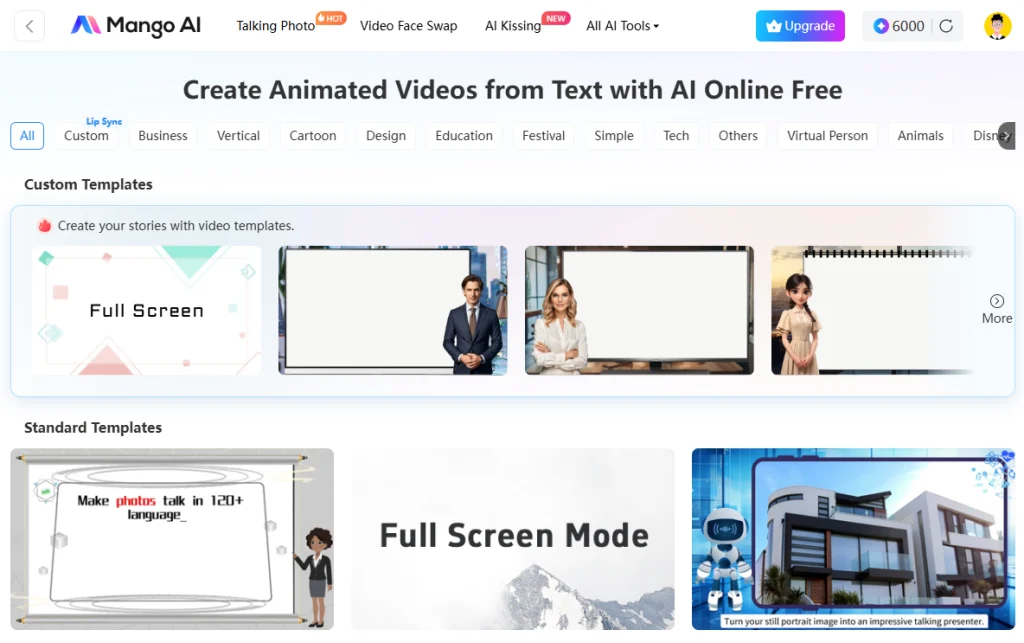
O Mango AI é um dos criadores de vídeo com inteligência artificial mais recomendados para a criação de vídeos de aprendizagem online. texto para animação Uma ferramenta que converte textos roteirizados em vídeos animados completos, com avatares de IA, vozes, música de fundo, introduções, encerramentos e alta resolução. Centenas de modelos de vídeo predefinidos estão disponíveis para seleção, agilizando o fluxo de trabalho. Com o Mango AI, você poderá criar vídeos educacionais para estudantes sem complicações. Basta seguir alguns passos simples para começar.
Step-by-Step Guidance on Creating Educational Videos with AI
Siga os cinco passos principais para converter texto em um vídeo educativo com o Mango AI.
1. Enter a Video Script
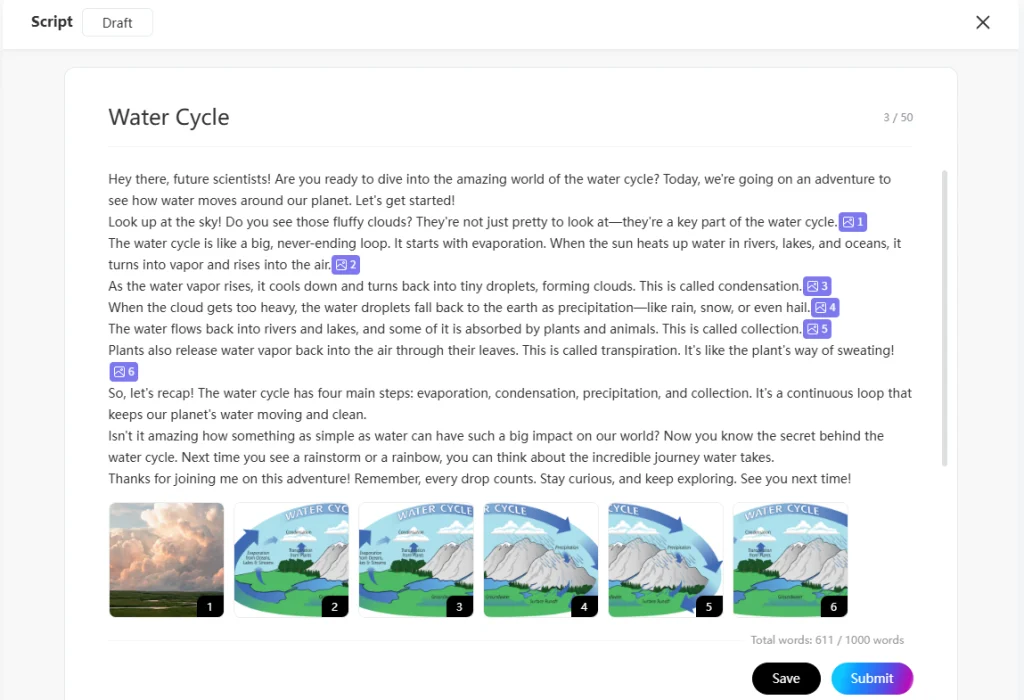
Todo bom vídeo educativo começa com um roteiro bem escrito, detalhado e conciso para apresentar o conteúdo aos seus alunos. Após selecionar um modelo personalizado, insira o seu roteiro. O texto roteirizado será o que o seu avatar de IA dirá ao público como se fosse o professor. Você tem a opção de inserir imagens para tornar os conceitos mais claros e compreensíveis.
2. Choose an AI Avatar or Create a Custom One
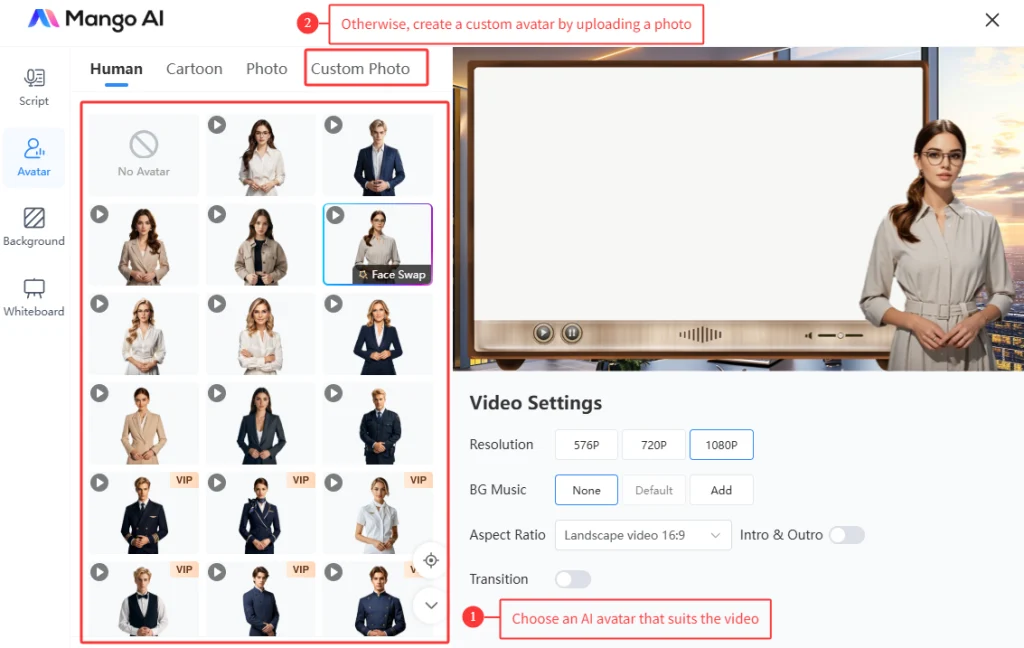
O avatar de IA é o personagem visual que seus alunos verão no vídeo. A Mango AI oferece uma biblioteca de avatares humanos e de desenho animado vestidos com diversas roupas profissionais. Selecione aquele que você achar mais adequado.
Alternativamente, você pode enviar uma foto personalizada de uma pessoa ou de um personagem de desenho animado que você gostaria de animar para criar um avatar para o vídeo de aprendizagem online. Por exemplo, se você quiser que seus vídeos de ensino apresentem um avatar seu, basta enviar uma foto sua e convertê-la em um avatar de IA realista.
3. Select an AI voice
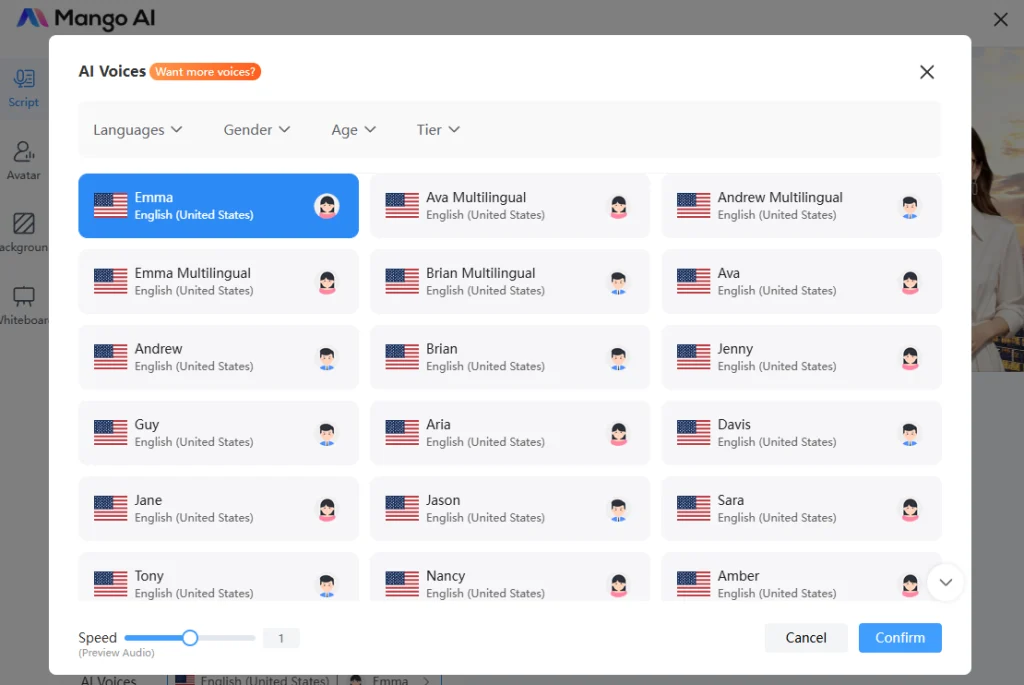
Selecione a voz de IA que melhor combine com a aparência e a personalidade do seu avatar. A Mango AI oferece diversas vozes de IA com tons e sotaques que representam diferentes nacionalidades, gêneros e faixas etárias. Essas vozes são projetadas para soar incrivelmente realistas, fazendo com que seu público sinta que está ouvindo um falante humano de verdade.
Além disso, existem várias opções de idioma, incluindo inglês, francês, italiano, espanhol e mandarim. Selecione o idioma mais adequado com base na língua materna dos seus alunos para garantir a máxima compreensão e envolvimento.
4. Adjust Additional Settings
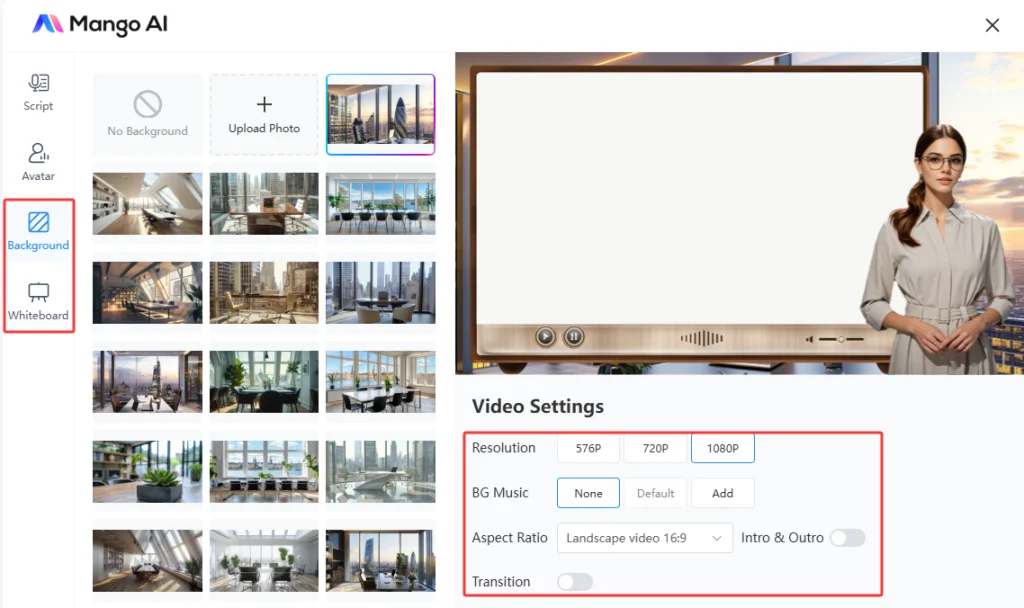
Você não quer que todos os seus vídeos educativos para alunos sejam iguais. O Mango AI oferece configurações de personalização adicionais para adaptar seus vídeos de ensino exatamente às suas necessidades. Essas configurações incluem:
- FundosAdicione um fundo personalizado ao seu vídeo educativo. Escolha entre a lista de imagens de fundo disponíveis ou carregue sua própria foto de fundo.
- Quadros brancosSelecione uma imagem de quadro branco para o seu vídeo na biblioteca. Cada imagem de quadro branco tem uma borda diferente. Você também pode selecionar "Sem imagem de quadro branco", se preferir.
- ResoluçãoA resolução dos seus vídeos de ensino pode ser 576p, 720p ou 1080p. Na maioria dos casos, você vai querer selecionar 1080p para obter a melhor qualidade de vídeo.
- Proporção da telaEscolha uma proporção de tela adequada para o seu vídeo, com base no tamanho do dispositivo que seus alunos usam. As opções incluem vídeo em formato paisagem (16:9), vídeo em formato retrato (9:16), vídeo quadrado (1:1), vídeo vertical (4:5) e vídeo horizontal (5:4).
- Música de fundoAdicione uma música de fundo ao seu vídeo educativo para torná-lo mais interessante e envolvente. Você pode escolher uma faixa da biblioteca de músicas disponíveis ou enviar a sua própria música personalizada.
- Introdução e encerramentoAdicione uma introdução e uma conclusão aos seus vídeos de aprendizagem online para dar-lhes mais estrutura e organização para o seu público.
5. Generate an AI Video
Pronto! Clique no botão “Gerar Vídeo com IA” para que a IA gere seu vídeo educacional. O processo pode levar alguns minutos. Depois, você poderá baixar e integrar o vídeo ao seu sistema de gestão de aprendizagem ou outra plataforma de cursos educacionais. Abaixo está o vídeo educacional que eu gerei.
Conclusion
Criar vídeos educativos para estudantes não é difícil na era moderna. Uma ferramenta online intuitiva como o Mango AI simplifica o processo de desenvolvimento de vídeos de aprendizagem online. Não são necessárias habilidades ou experiência especiais para produzir vídeos didáticos com qualidade profissional. Dedique um pouco de tempo para se familiarizar com a ferramenta interativa de aprendizagem em vídeo até compreender os passos para operá-la. Depois disso, você estará pronto para criar vídeos de aprendizagem online para seus alunos!
Crie vídeos educativos interativos com o Mango AI.